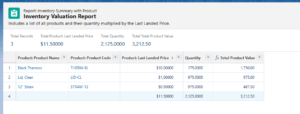


Nothing is more frustrating than spending a significant amount of time configuring your system before you can get to what you really want to do–get visibility into your inventory! After you’ve installed the app into your org, you’ll be able to view your inventory availability in 10 minutes or less with the simple Small Business Inventory Management App built for the Salesforce platform. This can be accomplished in three easy steps:
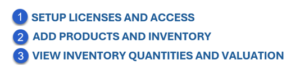
See below, or download a copy of our Quick Start Guide!
SETUP LICENSES AND ACCESS
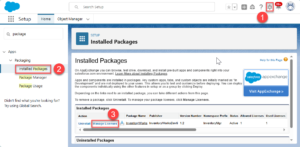
1) Assign a license to the user(s) who will be using the app.
a) Go to Setup > Installed Packages > Manage Licenses
b) Select “Add Users” to assign the license(s) and select the user(s) who need access.
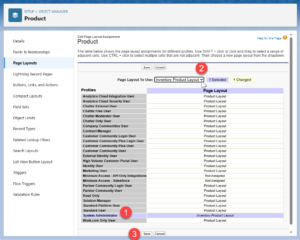
2) Add InventoryWorks Page Layouts to the profile of the users selected in Step 1.
a) In the Setup menu, go to Object Manager and select the “Product” object label.
b) Select Page Layouts and click on the “Page Layout Assignment” button.
c) Click on “Edit Assignments” button and assign the Inventory Product Layout to the profile of the user(s) who need access.
ADD PRODUCTS AND INVENTORY
1) Go to the App Launcher waffle, search for and select Inventory Management
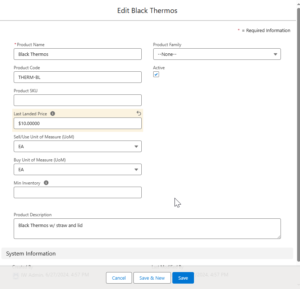
2) Select the Product down arrow and select “+New Product”
a) Add the product name, Product Code, and Last Landed Price (Cost)
b) Click on the “Active” box to activate the product and Save the record
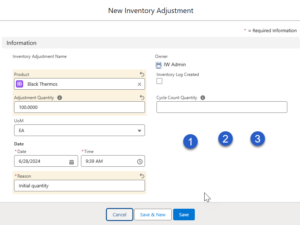
3) Select the Inventory Adjustment down arrow and select “+Inventory Adjustment”
a) Type in the Product Name from Step 2
b) Add the initial inventory quantity to the “Adjustment Quantity” field
c) For the “Reason” field, we recommend “Initial Quantity”
4) Repeat steps 2 and 3 for all products and inventory.
 VIEW INVENTORY QUANTITIES AND VALUATION
1) Click on the Reports tab
2) Go to All Reports and select “Inventory Valuation Report”
3) The report will show all products entered with their quantity, cost, and total value